Managing your instance
Everything about a running instance is managed from your dashboard:
open the instance and you'll find tabs for Overview (status and
metrics), Providers, Secrets, Channels, Authentication,
Support and Server.
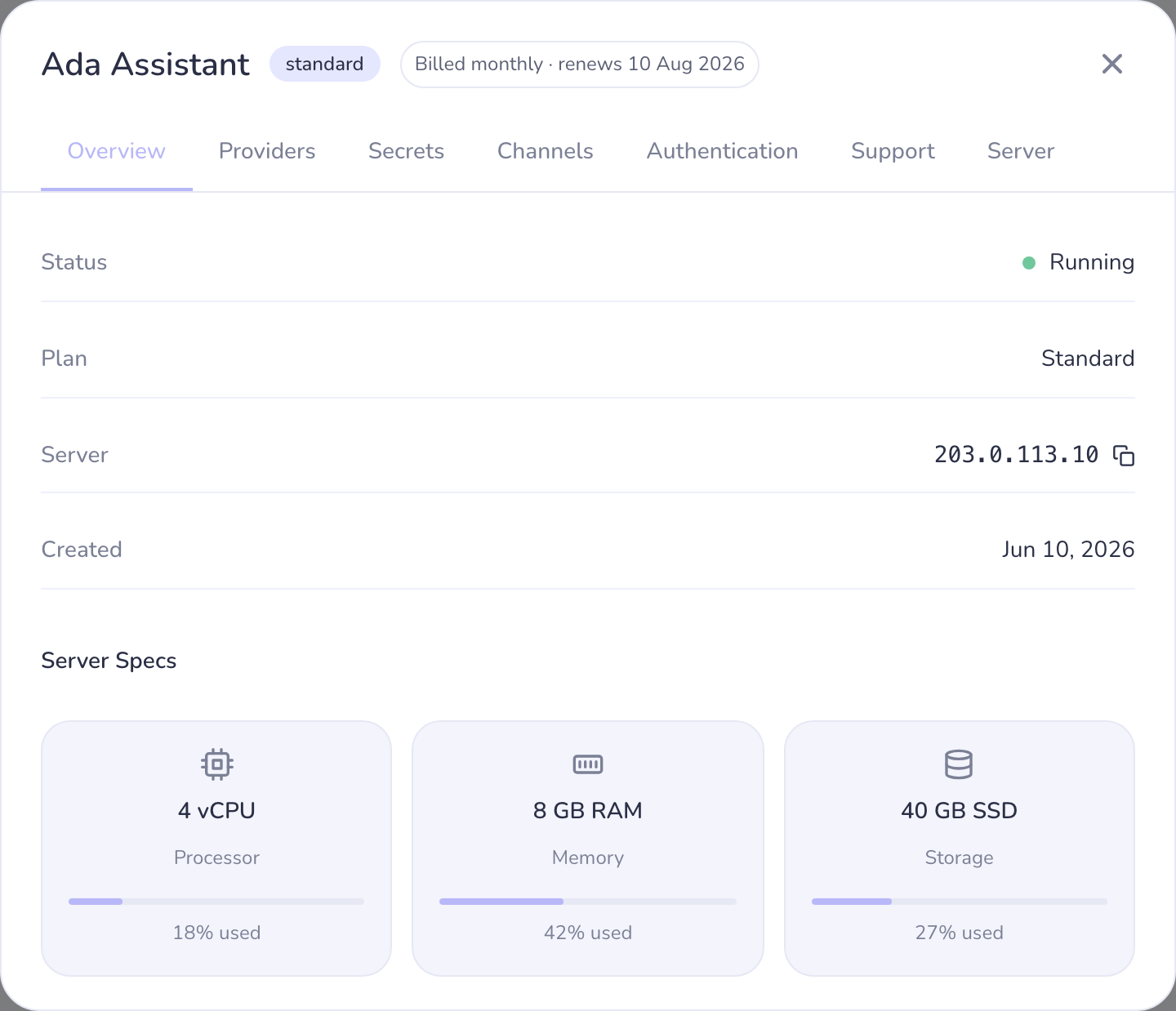
Instance statuses
- Running — the normal state; your assistant is answering.
- Provisioning / starting — a new deploy or a fresh start is still
coming up. Give it a few minutes before assuming something's wrong.
- Stopped — the server is powered off. Channels and providers can't be
changed while stopped, and the assistant won't reply.
- Failed — something went wrong during a deploy. Raise a support
ticket; don't keep re-deploying into the same failure.
Restart vs. Stop — read this one
These two buttons on the Server tab do very different things:
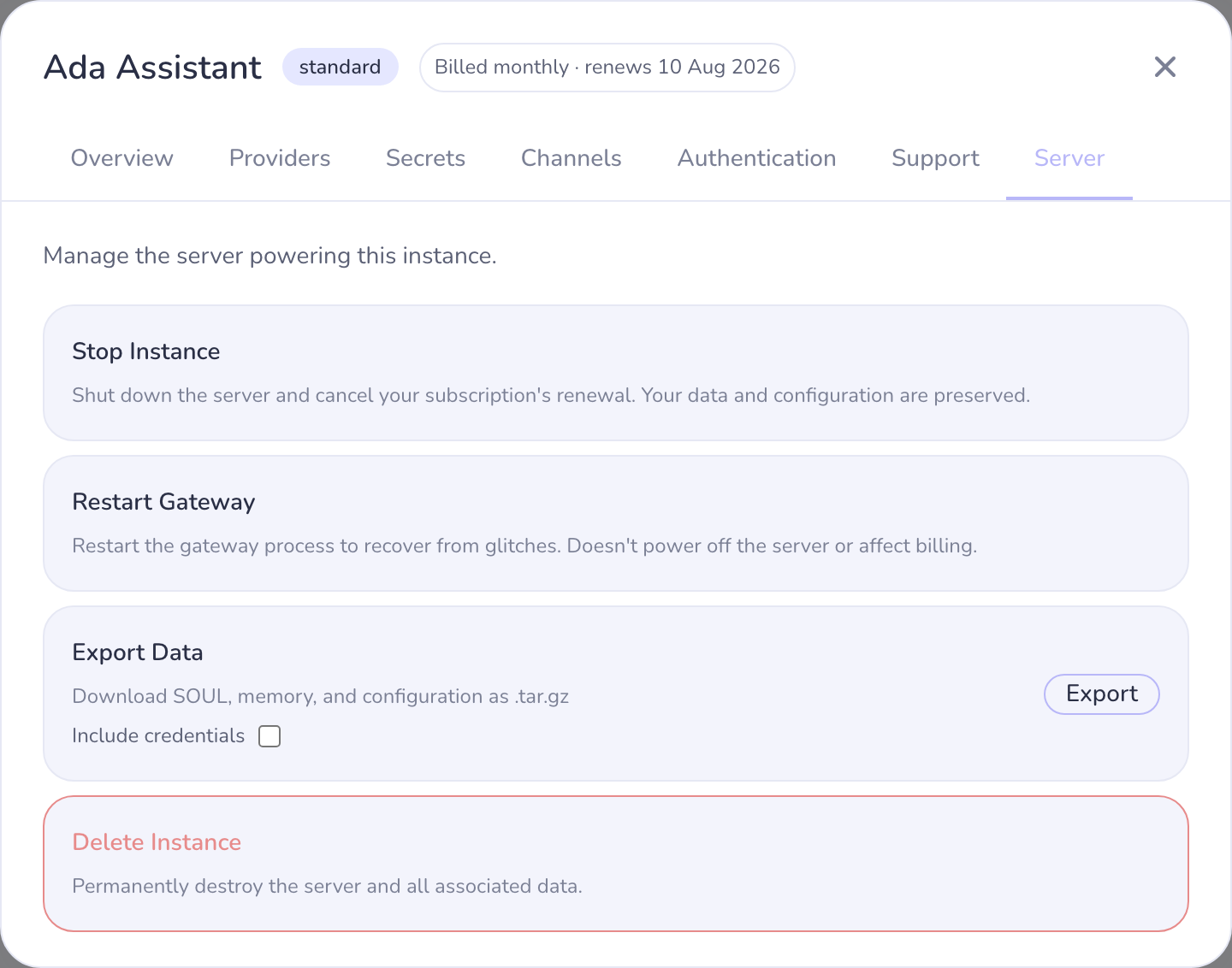
- Restart Gateway is the safe one. It restarts the assistant's
software to recover from glitches — the assistant stopped answering,
a channel looks stuck — and never affects your billing. Reach for
this first.
- Stop Instance shuts the server down **and cancels your
subscription's renewal**. You keep access until the end of the period
you've paid for, and your data and configuration are preserved — but
this is a billing action, not a troubleshooting one.
> If your assistant just seems stuck, use Restart Gateway, not Stop.
If Restart says it couldn't reach your server, raise a support ticket.
Software updates
Occasionally an action in the dashboard (usually adding a channel or
provider) fails with a message that your **instance needs a software
update**. That's not something you did wrong — the software on your server
is a version behind the dashboard. Raise a support ticket and we'll get it
updated.
SSH access
On plans with server access (Standard and up), the Server tab lets you
add SSH keys and set a password. Connect as the niva user at your
instance's IP address:
```bash
ssh niva@your-instance-ip
```
Exporting your data
The dashboard can export your instance's data — configuration and
content in a downloadable archive. Do this whenever you want a backup, and
always before deleting an instance.
Deleting an instance
Deleting removes the server and everything on it. Export your data first —
there's no undo. If what you actually want is to pause billing, that's
Stop Instance (your data survives a stop).